Unable to open TEA after logging into the ASP Environment: Requesting PIN Message
If you are attempting to open TEA 10 after successfully logging into the ASP environment and are being prompted to enter a PIN in a Windows Security pop-up window, you will need to do the following:
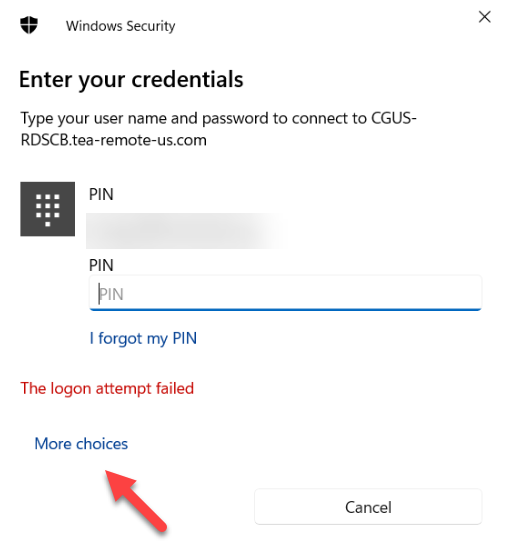
1. Click the More choices link as shown above.
1. Click the More choices link as shown above.
2. Click the Use a different account button that will appear below the link.
3. The appearance of the Windows Security pop-up window will change, replacing the PIN section with the following:
4. In the email address field, enter your username using the below as an example:
Canadian ASP Clients
tea-remote-ca\firstname.lastname
US ASP Clients
tea-remote-us\firstname.lastname
5. Enter your ASP Password in the Password field and click OK to proceed.
Should you still be unable to proceed to the TEA 10 login, please contact TEA Support.
5. Enter your ASP Password in the Password field and click OK to proceed.
Should you still be unable to proceed to the TEA 10 login, please contact TEA Support.